 Agenda
How to use Agenda.
From the first launch to widgets and backups, in twelve short sections.
Ready in under a minute
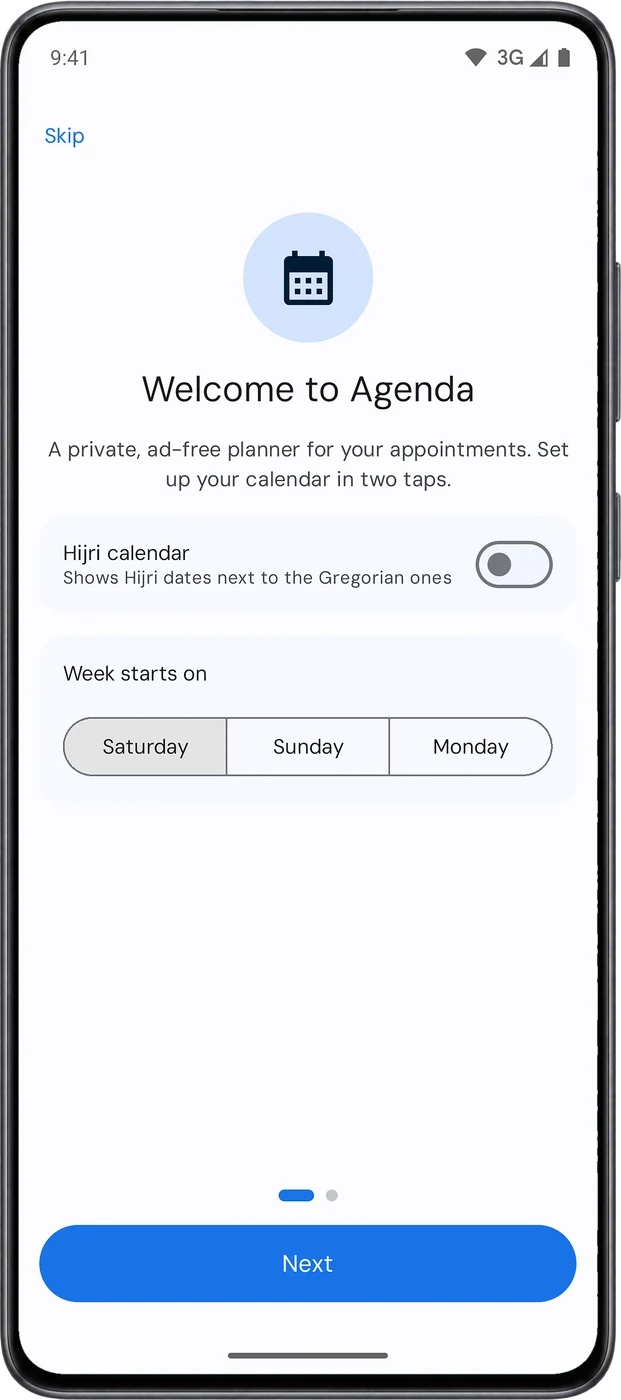
The first launch walks you through a few short screens. You can skip them and change everything later in Settings.
- Turn on Hijri calendar if you want Hijri dates next to the Gregorian ones, and pick the day your week starts on: Saturday, Sunday or Monday.
- Tap Allow notifications so your reminders can reach you.
- In Arabic, an extra step sets up prayer times: your city, from the list or with My location, and your school of thought.
Your approximate location is read once, on your phone, and never sent anywhere.
Your whole day at a glance
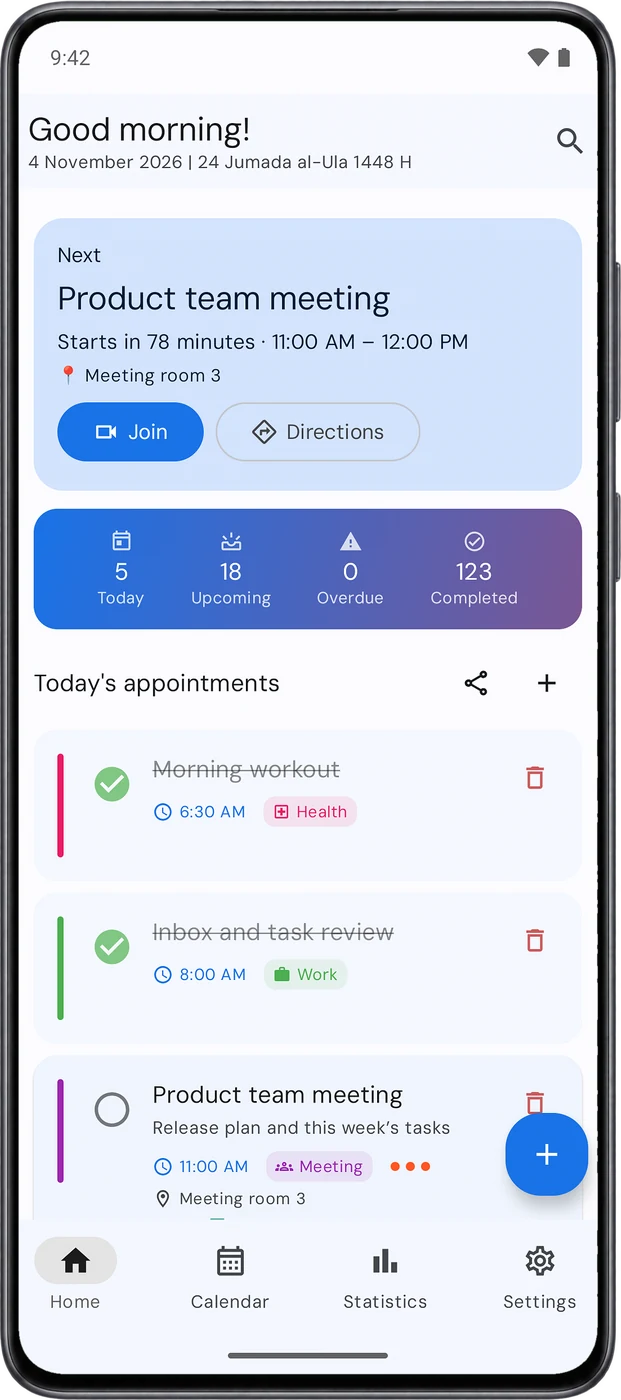
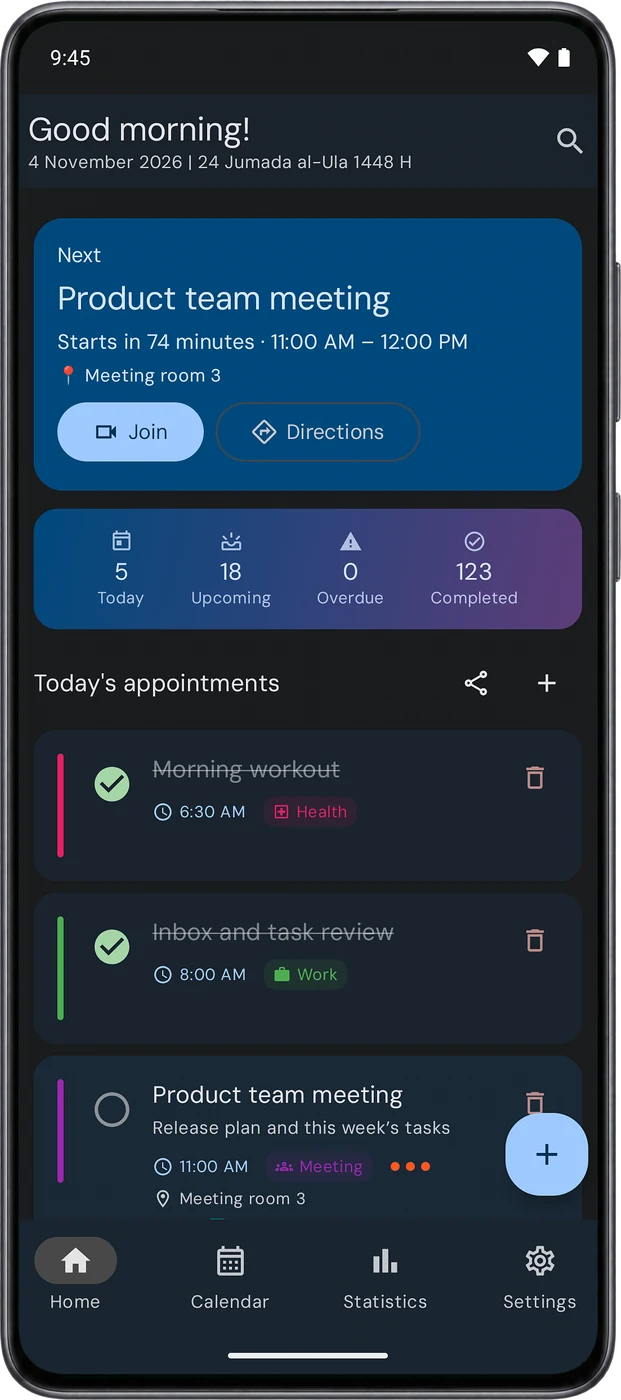
- The Next card shows your upcoming appointment and how long until it starts, with Join for a meeting link and Directions for a location.
- The counters show today, upcoming, overdue and completed appointments.
- Today’s appointments: tap the circle to complete one, or the appointment to open it. The share button sends your day as text.
- Search from the icon at the top. The field opens ready to type.
Six ways to add an appointment
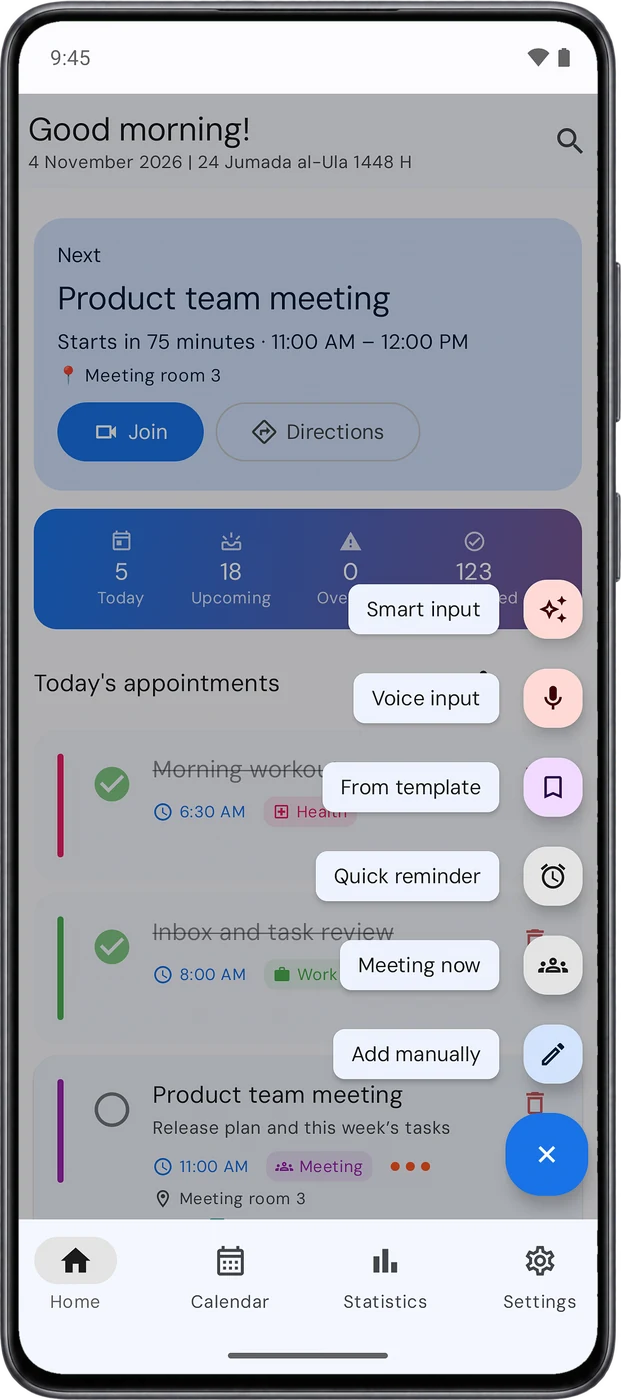
Tap + on Home to open the add menu:
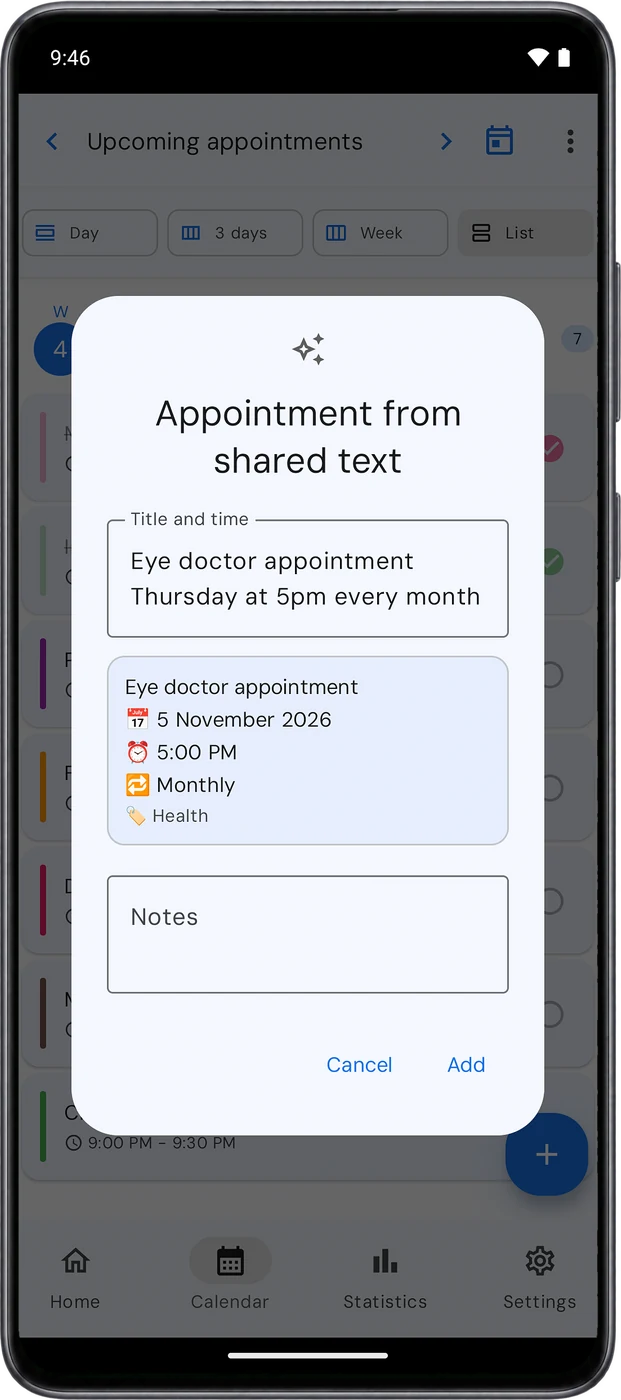
- Smart input: write it as a normal sentence, like “Eye doctor appointment Thursday at 5pm every month”. Agenda picks out the title, date, time, repeat and category, and shows them before saving.
- Voice input: say the sentence instead of typing it.
- From template: save an appointment once and reuse it.
- Quick reminder: just a title and a reminder.
- Meeting now: a meeting that starts right now.
- Add manually: the full form with every option.
Share text from any app, such as a message or an email, and choose Agenda: smart input opens with that text. You can also add a New appointment tile to your phone’s quick settings.
Everything about an appointment, in one place
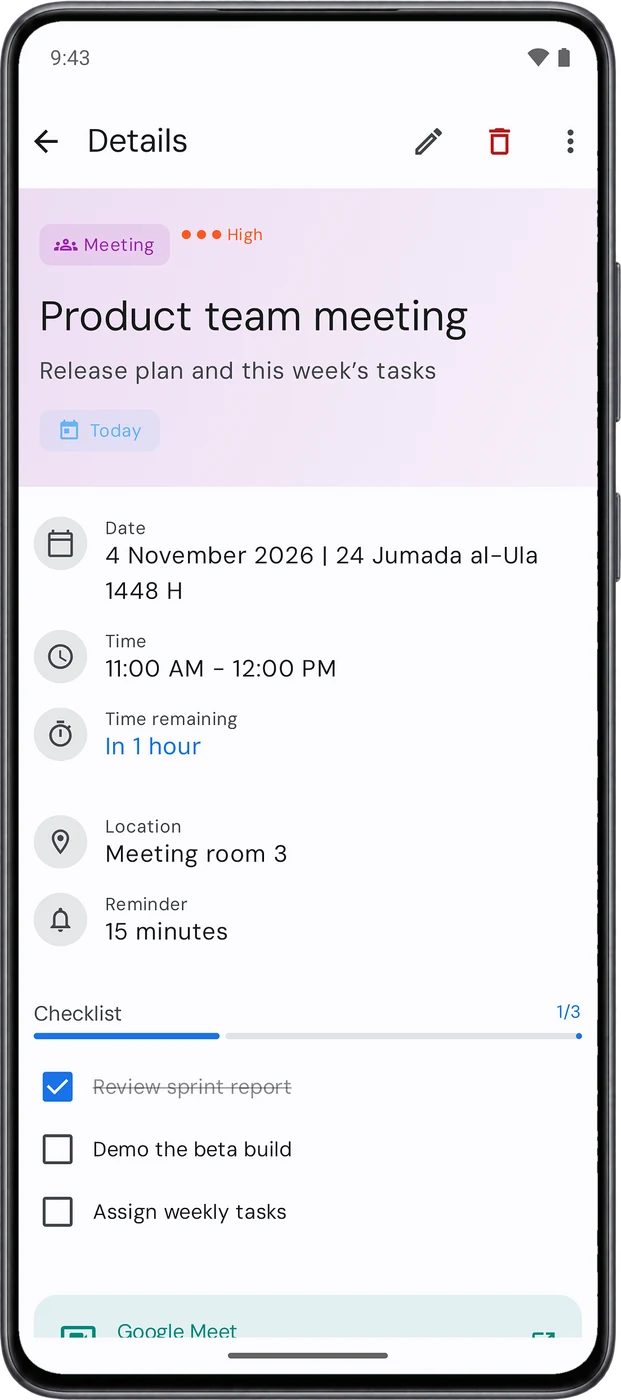
- Date and time: a start and an end time, or All day.
- Category and priority: work, personal, health, meeting, family, education, finance or other, with priority from low to urgent. Add your own categories in Settings.
- Reminder: choose when, then tap Add another reminder for a second or third one.
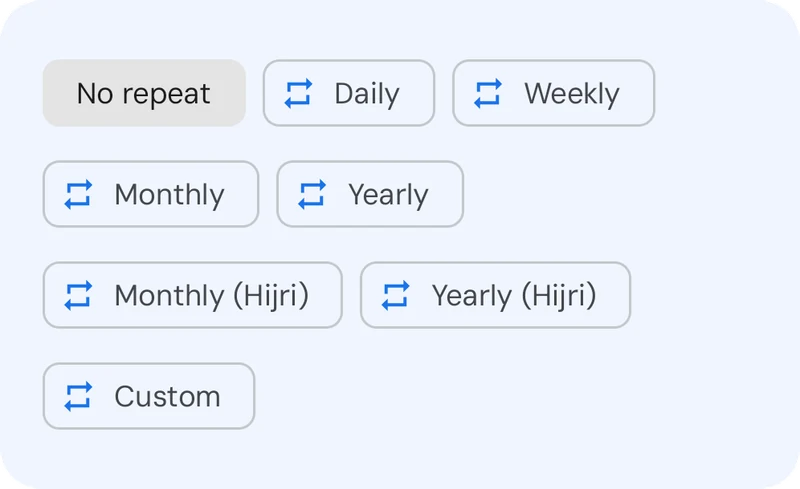
- Repeat: daily, weekly, monthly or yearly, Hijri monthly or yearly, or custom. Premium for Hijri and custom
- Extra content: attachments, a checklist with progress, and a meeting link that Agenda recognizes as Google Meet, Zoom or Teams.
- Private appointment: hidden from widgets and notifications.
When you edit or delete a repeating appointment, Agenda asks whether the change is for this one only, or for this one and the ones after it.
Four ways to see your time
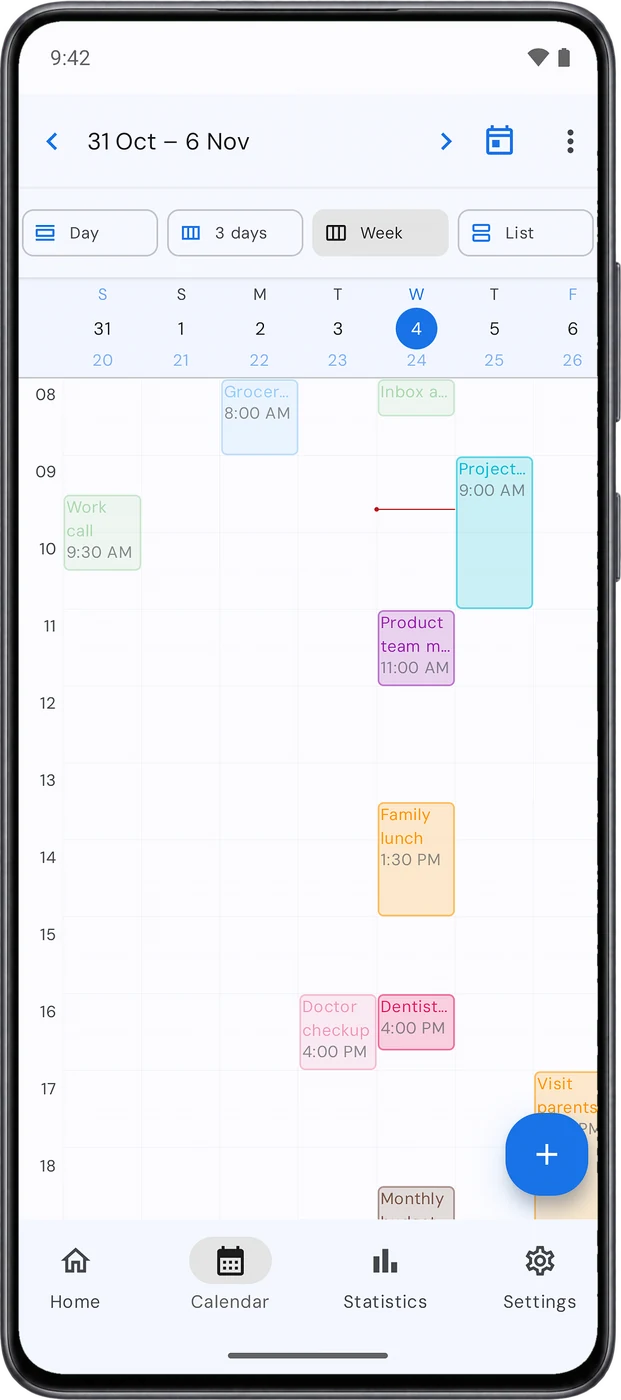
- Pick a view at the top: Day, 3 days, Week or List. The arrows move to the previous or next period.
- Each Gregorian date shows its Hijri day underneath when the Hijri calendar is on.
- Drag an appointment in the day or week view to change its time on the same day.
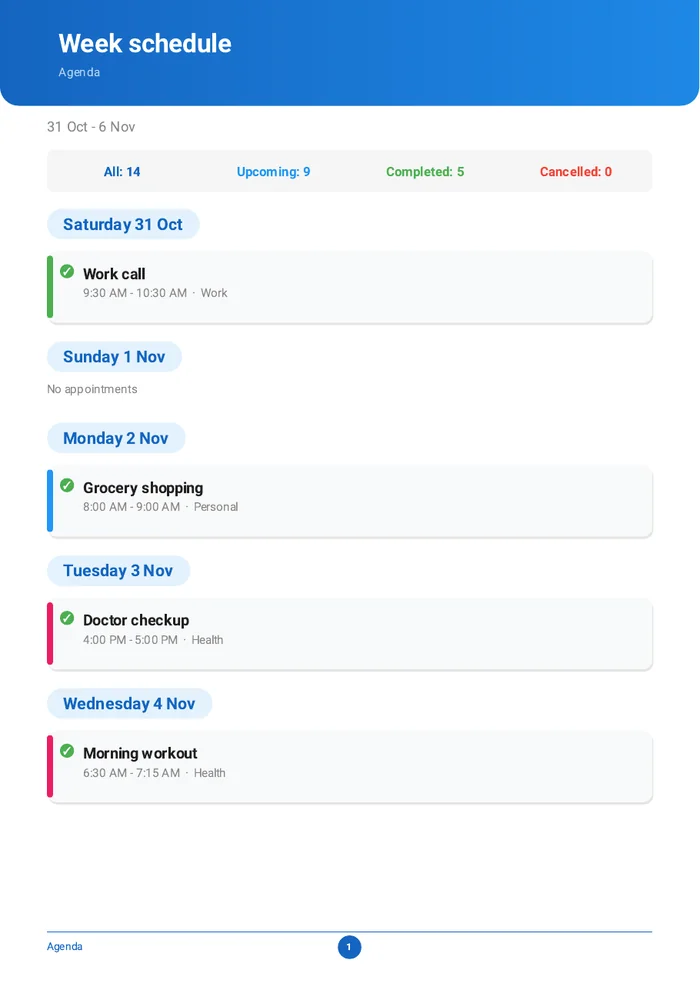
- From the ⋮ menu, choose Export PDF for a print-ready schedule, or Copy as text.
Reminders that arrive on time
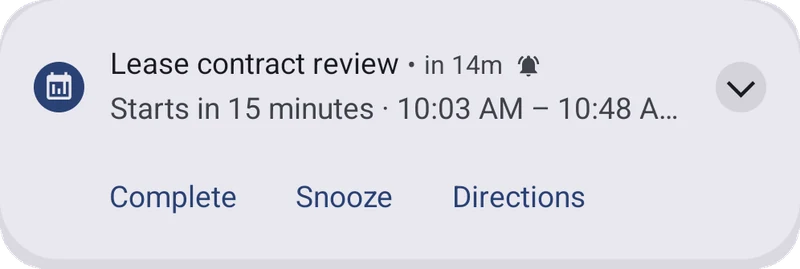
- The notification arrives at the time you chose, with Complete, Snooze and Directions.
- A Morning summary of today’s appointments, and a Weekly summary of the week ahead.
- Persistent notifications: important appointments stay until you confirm them.
- Reminder health, in Settings under Reminders, checks notifications, exact alarms and battery limits, and can Send a test reminder in one minute.
Some Xiaomi, Huawei and Samsung phones can delay reminders. Open Reminder health, exclude Agenda from Battery optimization and turn on Auto-Start.
Appointments around prayer times
- Today’s prayer times appear on Home with a countdown to the next prayer. Set the city, school of thought and calculation method in Settings.
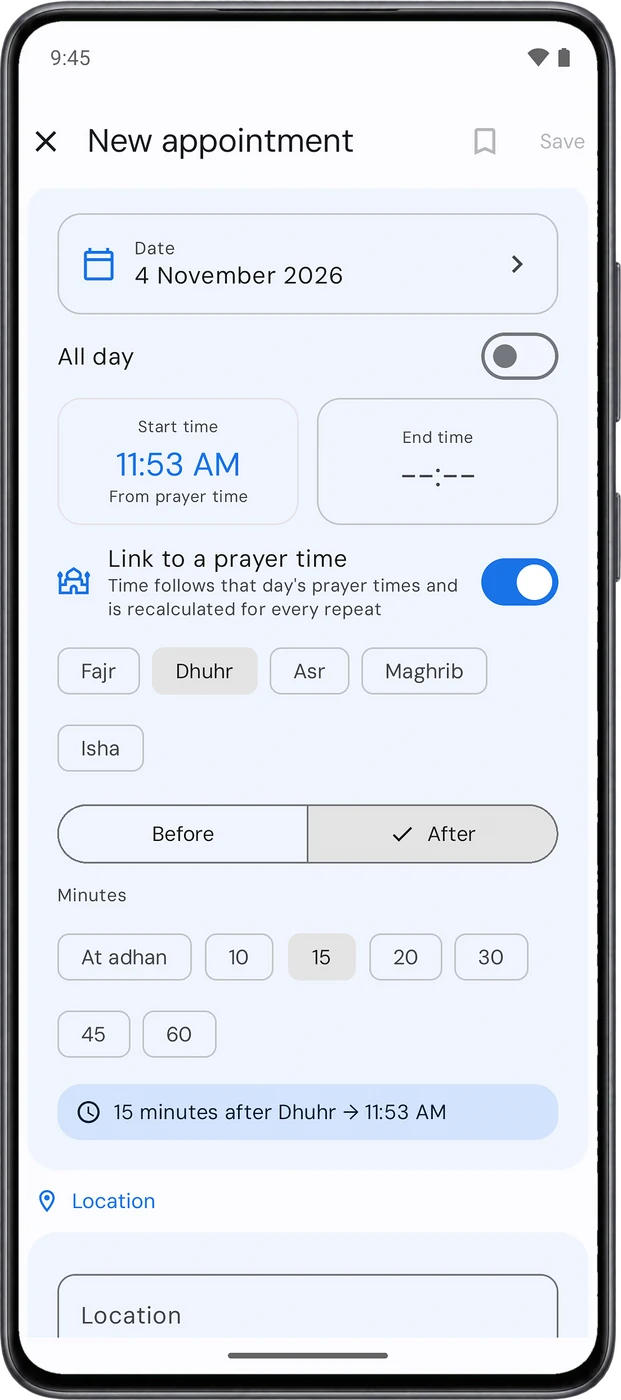
- Link to a prayer time in the appointment form: pick the prayer, before or after, and the minutes. The time comes from that day’s prayer times and is recalculated for every repeat. Premium
- Ramadan mode: a summary of the day after suhoor, before Fajr, and an alert when an appointment clashes with iftar or Friday prayer. Premium
- If the Hijri date is a day off for your country, fix it with Hijri date adjustment.
Don’t need them? Turn off Prayer & Ramadan features in Settings and everything related disappears.
Your week on your home screen
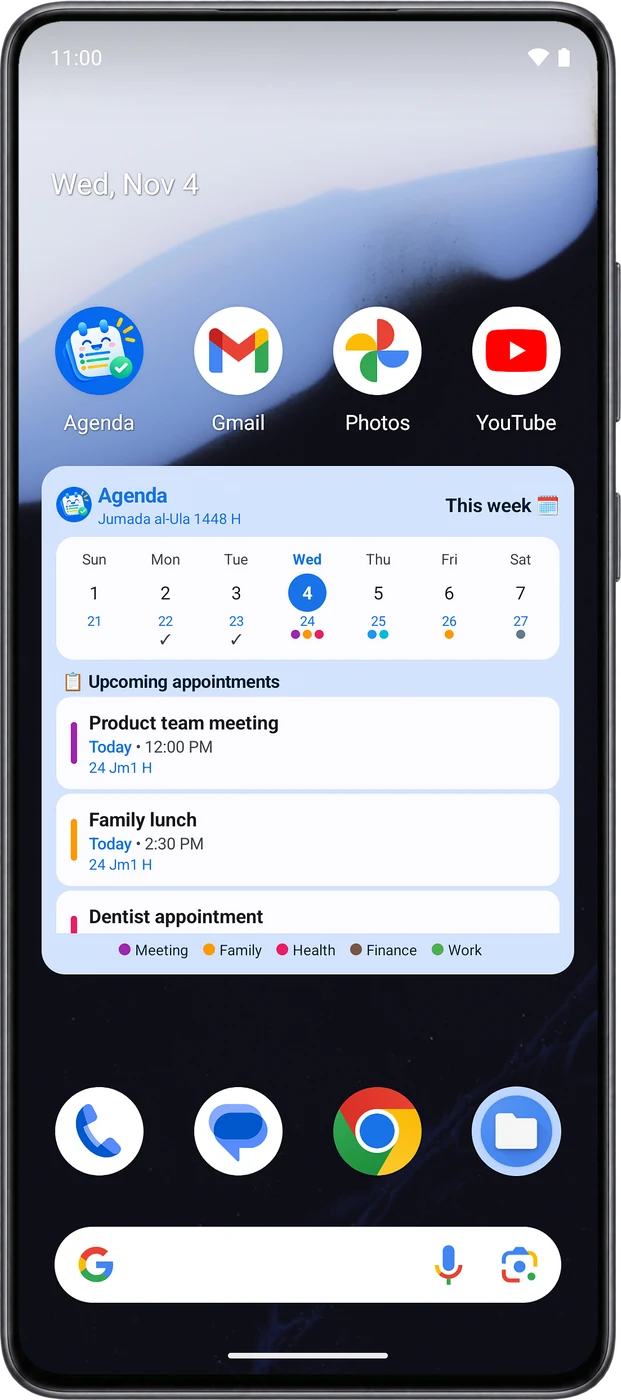
- Touch and hold an empty spot on your phone’s home screen.
- Choose Widgets, then Agenda.
- Drag a widget into place and resize it from its edges.
| Widget | Size | What it shows |
|---|---|---|
| Week view | 4×2 | The week with both dates, and upcoming appointments |
| Today’s appointments | 4×2 | Today’s appointments and their times |
| Countdown | 2×2 | Time left until the next appointment |
| Quick add | 2×1 | A button to add an appointment |
See where your time goes
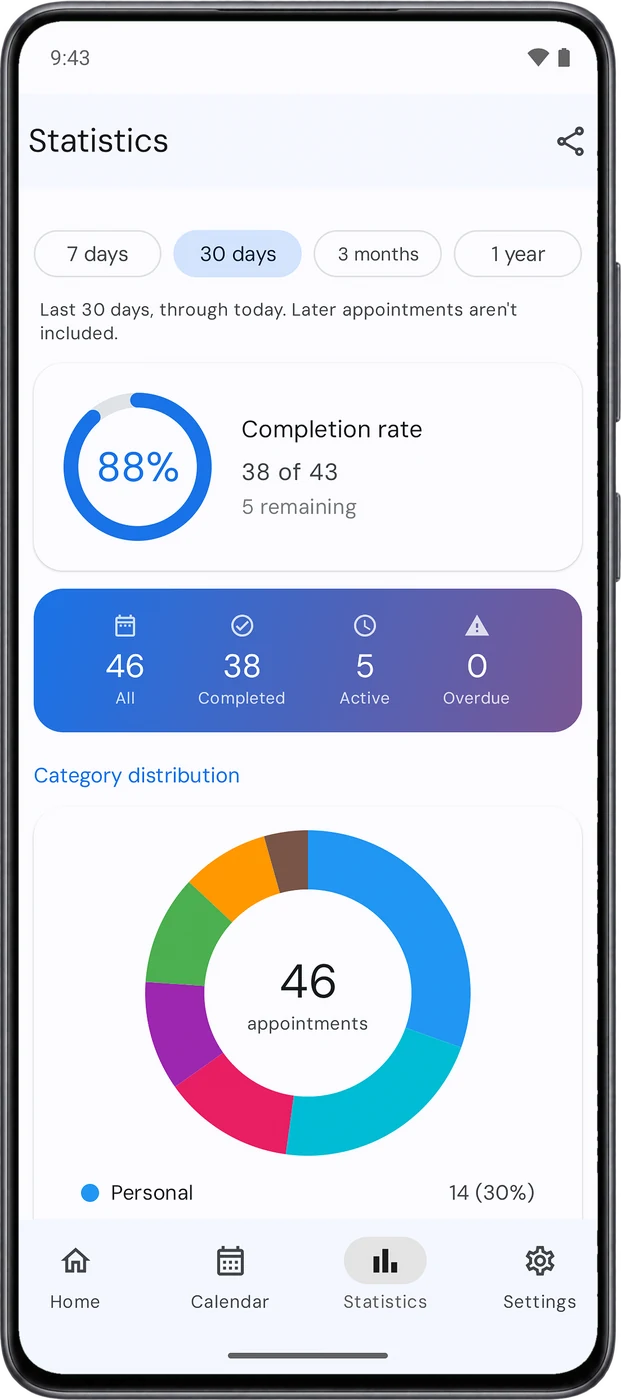
- Pick a period: 7 days, 30 days, 3 months or 1 year.
- Completion rate, category mix, appointments by weekday, productivity trend and an activity map.
- Insights sum up your busiest day, your daily average and your most used category.
- Share the report from the icon at the top.
Make it yours
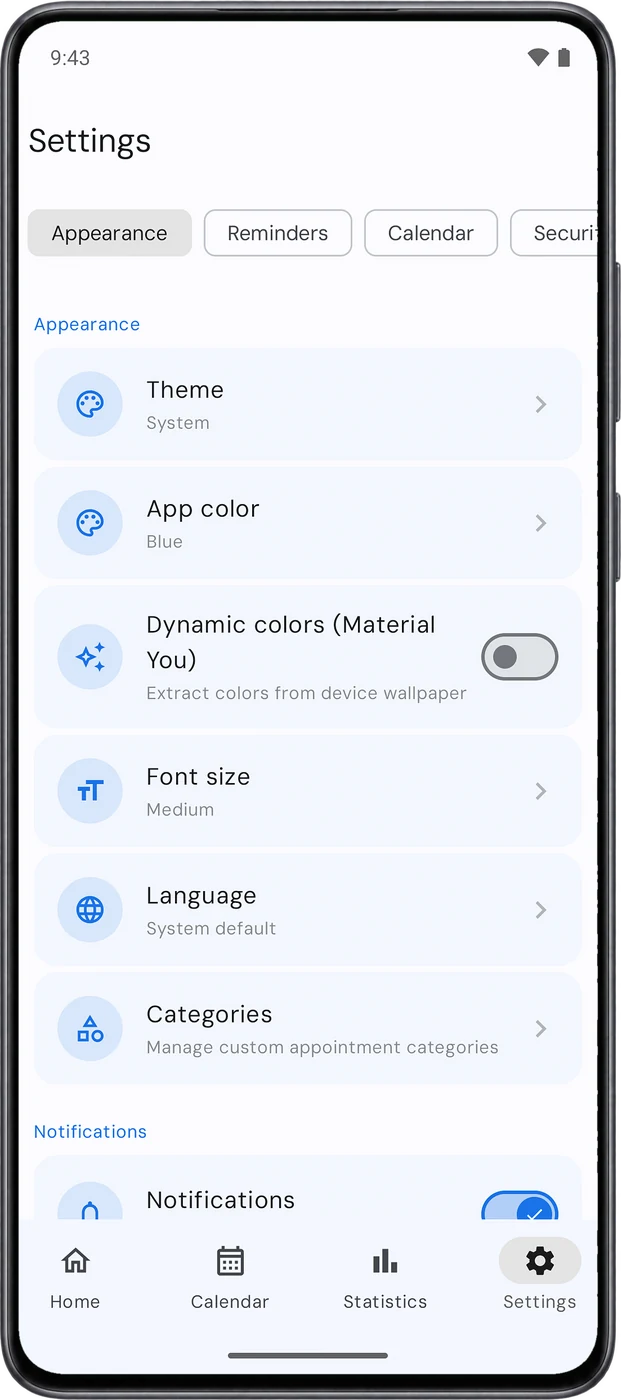
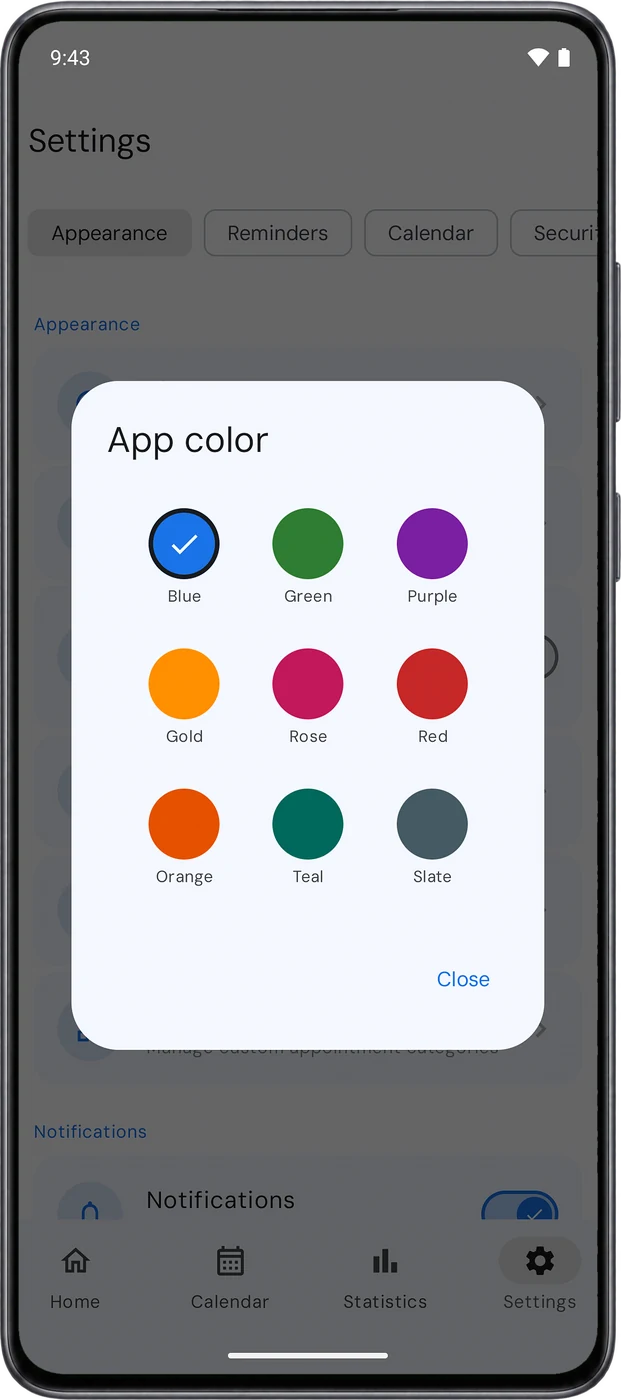
In Settings under Appearance: a light, dark or system Theme, nine App colors, or Dynamic colors (Material You) from your wallpaper, plus Font size and Language: English or Arabic. The first day of the week is under Calendar.
Private by design
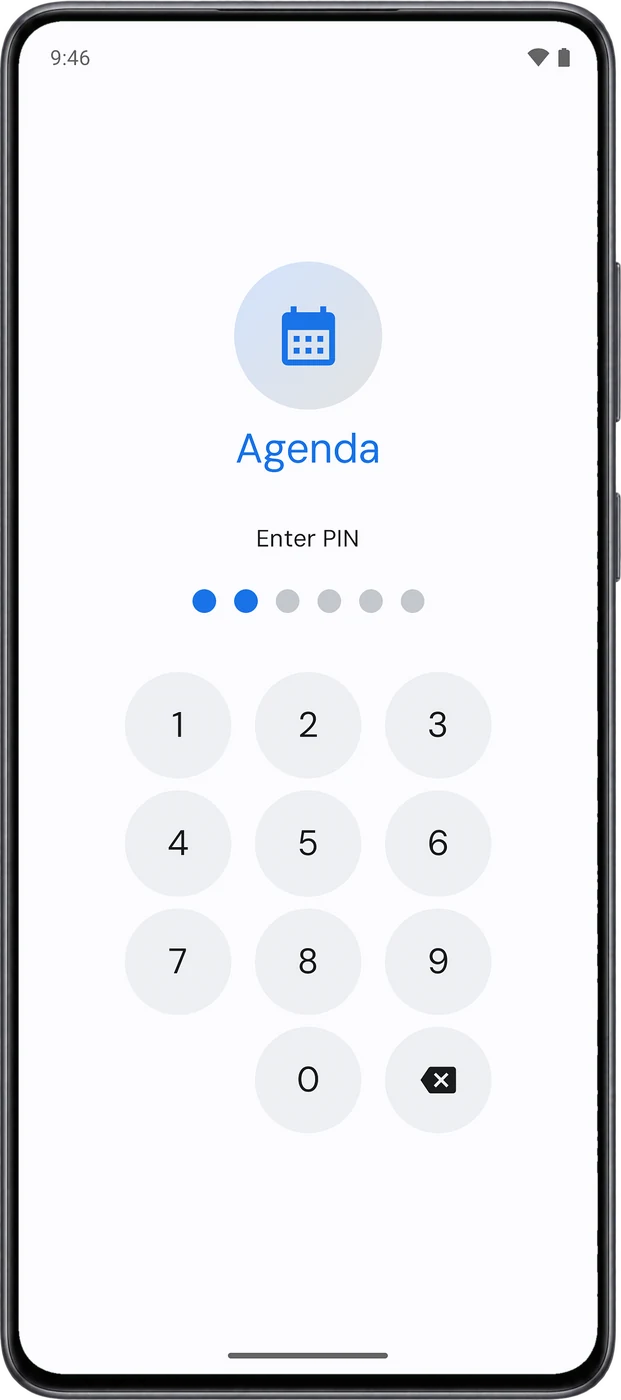
- App lock with a 4 to 6 digit PIN or your fingerprint, and a Lock timeout that starts at Immediately.
- Content protection blocks screenshots and hides content in recent apps.
- Backup and Restore to a file on your phone, free.
- Daily automatic backup and Google Drive backup, encrypted with a password you choose, in the app’s private folder in your account. Premium
- ICS export and import to move appointments to and from another calendar, and Recently deleted to restore anything deleted in the last 30 days.